

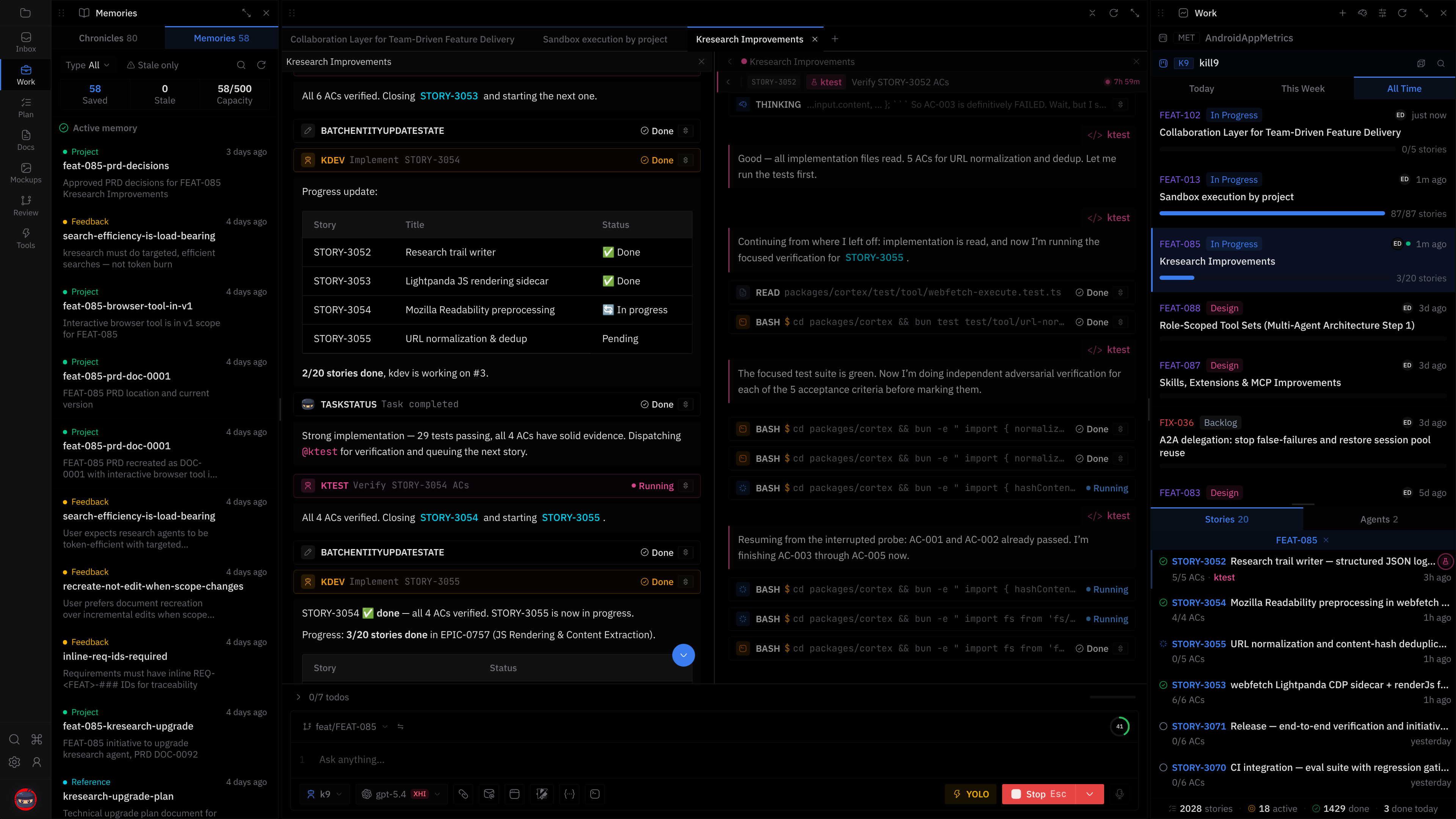
kill9 is a desktop app where AI agents help you build software. You describe what you want, and specialist agents — developers, architects, testers — plan, implement, and review the work.
This guide gets you from download to your first useful session.
What you need
kill9 is BYOK — bring your own keys. You connect your existing AI provider account and use your own API credits. No middleman, no markup.
- macOS Apple Silicon, macOS Intel, or Linux x64
- An API key from an AI provider (Anthropic, OpenAI, Google Gemini, GitHub Copilot, and more)
- A codebase you want to work on
Step 1: Install
Download kill9 from the website and open it. When the app launches and you see "Welcome to Kill9," installation is done.
Step 2: Onboarding
The first time you open kill9, a four-step wizard appears in the left sidebar.
Step 1 — Welcome. Three cards explain what kill9 does: bring your own AI provider, workspace-aware context, and autonomous agents. Click Get Started.
Step 2 — AI Provider. Connect your provider. Click Sign In for OAuth providers like Anthropic or GitHub Copilot, or Add Key to paste an API key for OpenAI, Gemini, or others. Then pick a default model — each shows its context window size, like 123k. You need a model selected before you can continue.
Step 3 — Workspace. Create or select a project, then point kill9 at your codebase folder. kill9 verifies it can read your repo and optionally checks that install, build, and test commands work. Give your workspace a name.
Step 4 — Get Started. "All set." Click Launch Kill9.
Step 3: First session
After onboarding, the app opens. Press Mod+2 to open Work — this is the chat surface where you talk to agents.
Start by asking kill9 to understand your project:
Explain this workspace. What are the main apps, packages, and how are they organized?Read the answer. You're checking that kill9 understands your codebase before asking it to change anything. If the explanation sounds right, try a small task:
Add a log statement to the main entry point that prints the current version.After the agent responds, check the change yourself. If it edited the right file and explained what it changed, your setup works.
What next
Now that kill9 understands your workspace, here are the common paths:
- Plan a feature — Press Mod+3 to open Plan. Create a feature initiative, write a PRD in Docs (Mod+4), and break it into stories.
- Fix a bug — An issue arrives in Inbox (Mod+1). Click Work on this and the agent triages it.
- Review code — After an agent makes changes, press Mod+6 to open Review and see the diff.
- Write documentation — Open Docs (Mod+4) and ask kdoc to draft a README or API doc.
Each of these has a dedicated guide. Start with the one that matches what you're doing today.
Need help?
- Ask khelp in Work (Mod+2) — it's an agent that answers product questions
- Open Settings (Cmd/Ctrl+,) to change your provider, theme, or shortcuts